Control · Integrations
AI guides your integrations. Your team stays in control.
Connect your application to an outside service using the documents or examples supplied by its provider. The AI explains what is needed and proposes the settings. Your team checks those settings, tests the connection and approves it before use.
AI helps your team set up connections to outside services. People check the details, test what happens and approve what goes live.
What is an integration?
An integration is a connection that lets your application exchange information with an outside service. For example, a user can click a button to look up a status and see the returned value in the form. An API is the agreed way the two systems send the request and reply.
The Integration Engine helps your team set up that connection without writing code. It brings the provider instructions, field matching, security settings and tests together, so people can review the setup before approving it for use.
Your integrations, in one place
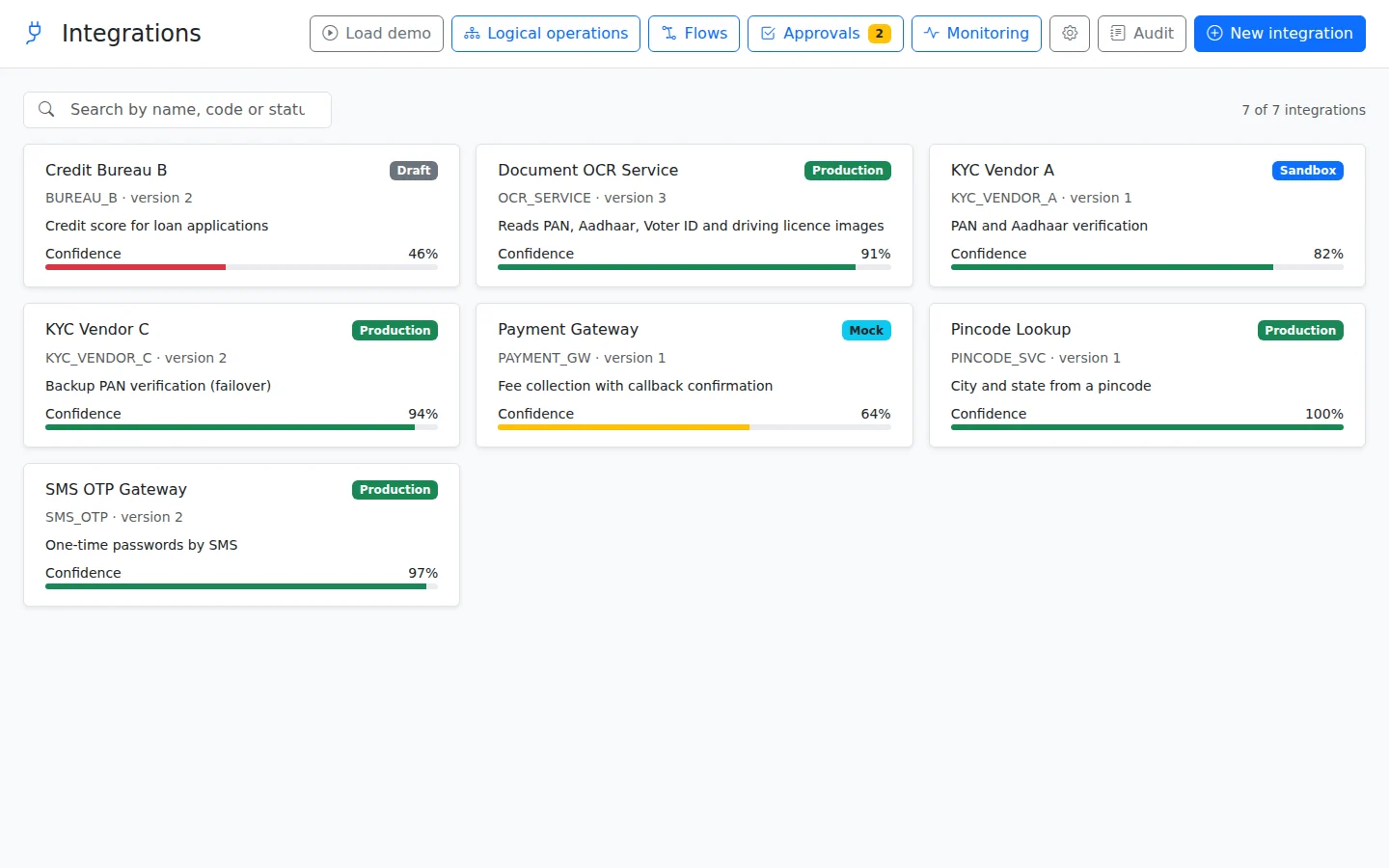
In this stop
- How it worksFollow setup from the first document to a working connection. See what your team reviews, tests and approves at each step.
- Built with AISee how the AI turns your request into proposed settings. Learn how to answer its questions, review assumptions and approve safe tests.
- Multi-provider and flowsUse more than one provider for the same service. Connect several calls into a process that decides what should happen next.
- Using integrationsChoose when a screen or workflow calls a service. Decide what users see when it succeeds, fails or needs more time.
- Everything you can configureUnderstand the settings for security, data, testing and recovery. Each explanation shows what the setting controls and why you might need it.
- Governance and monitoringControl who can change and publish a connection. See how change history, approvals and monitoring help your team run it safely.
- QuestionsFind answers about incomplete documents, testing, security and approvals. Technical terms are explained alongside the decisions your team needs to make.
What changed
Guided conversation
You do not need to complete a long technical form before starting. Share what you have, and the AI asks one question at a time to fill the gaps. It records anything that still needs checking.
Mocks come first
A mock is a prepared example of a request and its reply. Your team can use mocks to build screens and test success, failure or delays before the provider makes its test system available.
Approval before production
Before a provider version goes live, your team must check any high-risk assumptions. A separate approver reviews the proposed settings and supporting tests. Only the final approver can promote that provider version to Production, the environment used for real work.
A shared specification
Business analysts can describe the purpose of a connection, explain what each field means and prepare test examples in plain mode. Developers can use technical mode to inspect details such as security settings, request headers and error rules. You can pause setup or hand it to a colleague while keeping the decisions and supporting evidence together.
The same saved connection can be reused by screens, workflows and the phone app. Your team sets up how the service works once, then chooses when each part of the application should use it and what to do with the reply.
Each application uses only what it is allowed
Keep connection setup together while controlling where it is used. Define an integration once for the company, then choose the applications that may use it. Designers see only integrations within their application's scope when choosing a connection.
API clients have their own application scope. A calling system reaches only the applications selected for its client. Company administrators manage these choices alongside the company's shared integration definitions.
Scope cannot be removed while the integration is in use. Review the applications using it before changing access. Explore Applications for the split between shared company connections and each application's screens, workflows and records.

Check live data at save
Check current application data before saving a record. For example, a stock check can read the quantity available when the user submits the form.
This check is read-only and uses the application's own data. Its scope is strictly limited, and it needs its own permission.
Use the result in the configured save check. The check reads current information without changing the records it examines. Explore Rules and calculations for save checks and related-record values.
Build your first app free
All platform features, hosted by us for 120 days. For testing and evaluation, subject to our Fair Use Policy.
Explore DynamicForm
Company Admin · Applications · AI Core · Security and identity · Compliance · Rules and calculations
Updated 16 November 2026