Control · Integrations
Your team approves changes and sees what happens.
See what changed, why it changed and who approved it. Keep a record of published settings, and help the team running your services spot problems and investigate them without exposing passwords or personal data.
Provider versions need approval before production use. Compare settings, review affected screens and use activity records to investigate problems.
Versions you can compare
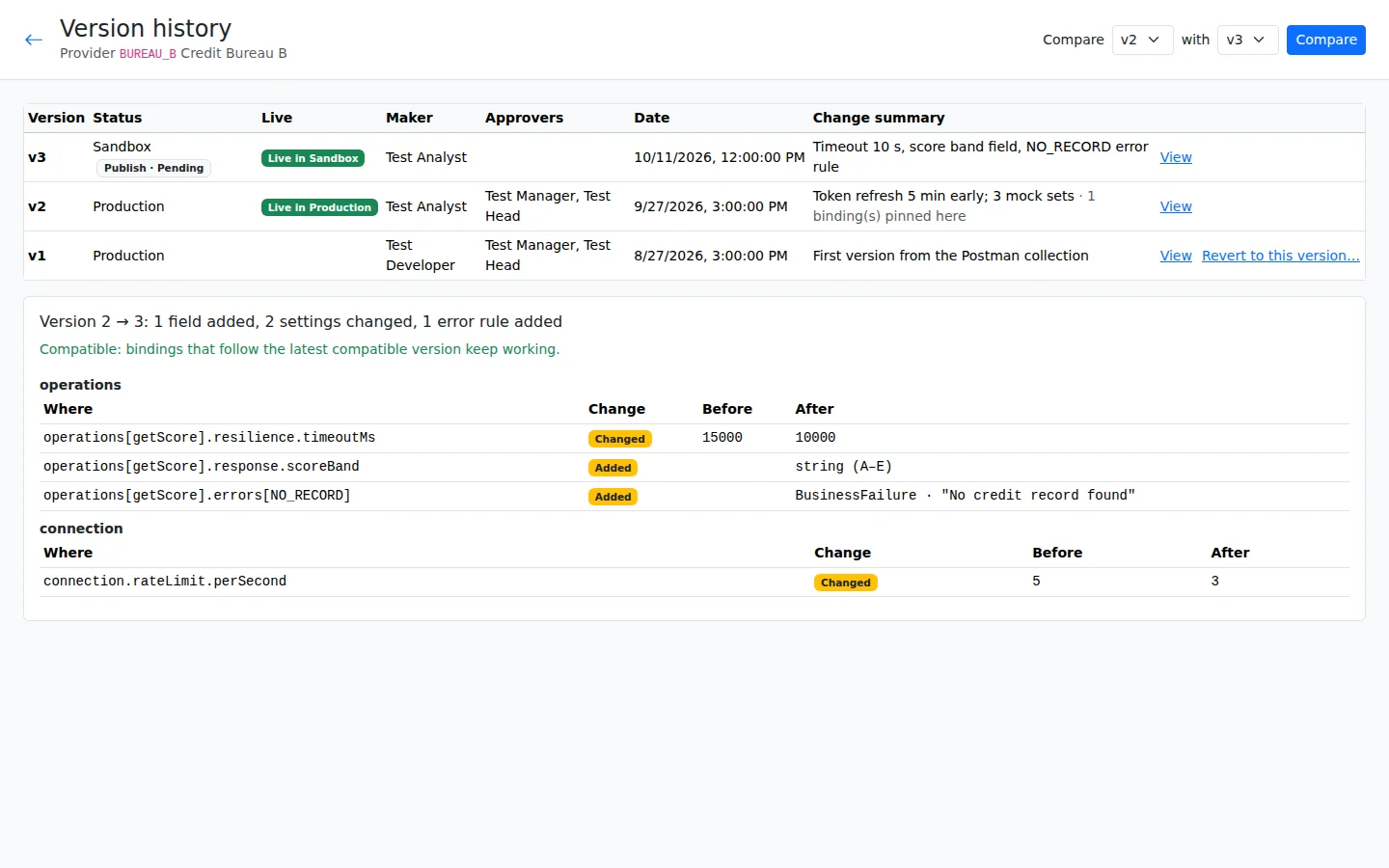
A version is a saved set of published settings. Compare versions side by side to see what changed, or request a return to an earlier version through the approval process.
For a direct provider connection, a screen can stay on one chosen version, called pinning, or follow the latest compatible version. Compatible means the update preserves the inputs and outputs that the screen relies on. A breaking change needs a new major version. Flows, logical operations and provider groups have one live version, so their connected screens cannot remain on an older contract after a breaking update.
Approval from the reporting line
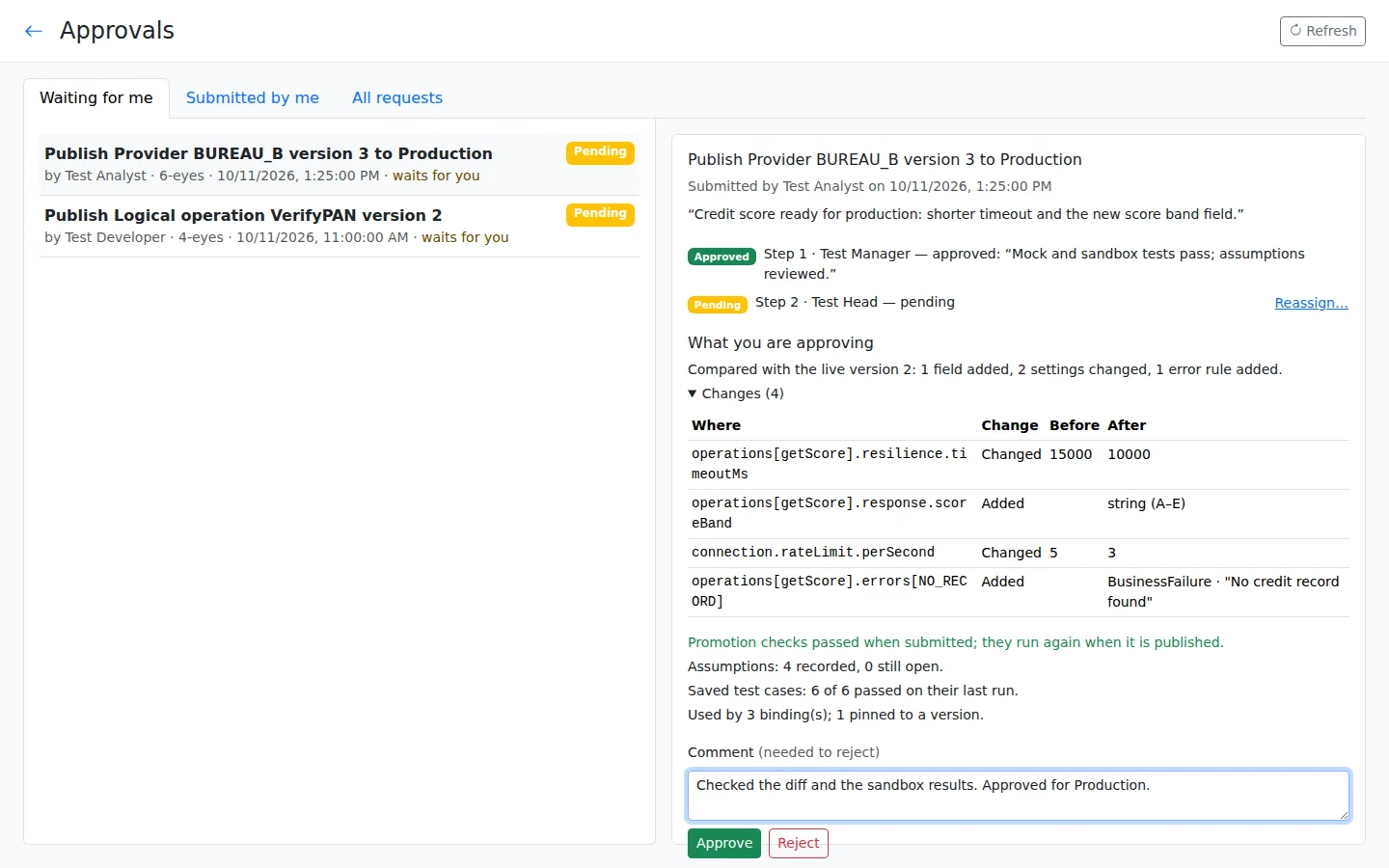
Four-eyes approval means one person makes the change and a second person approves it. Six-eyes approval adds a second, different approver. Approvers come from the reporting line, and requests appear in their inboxes. The person who made the change cannot approve it, and no person can approve twice.
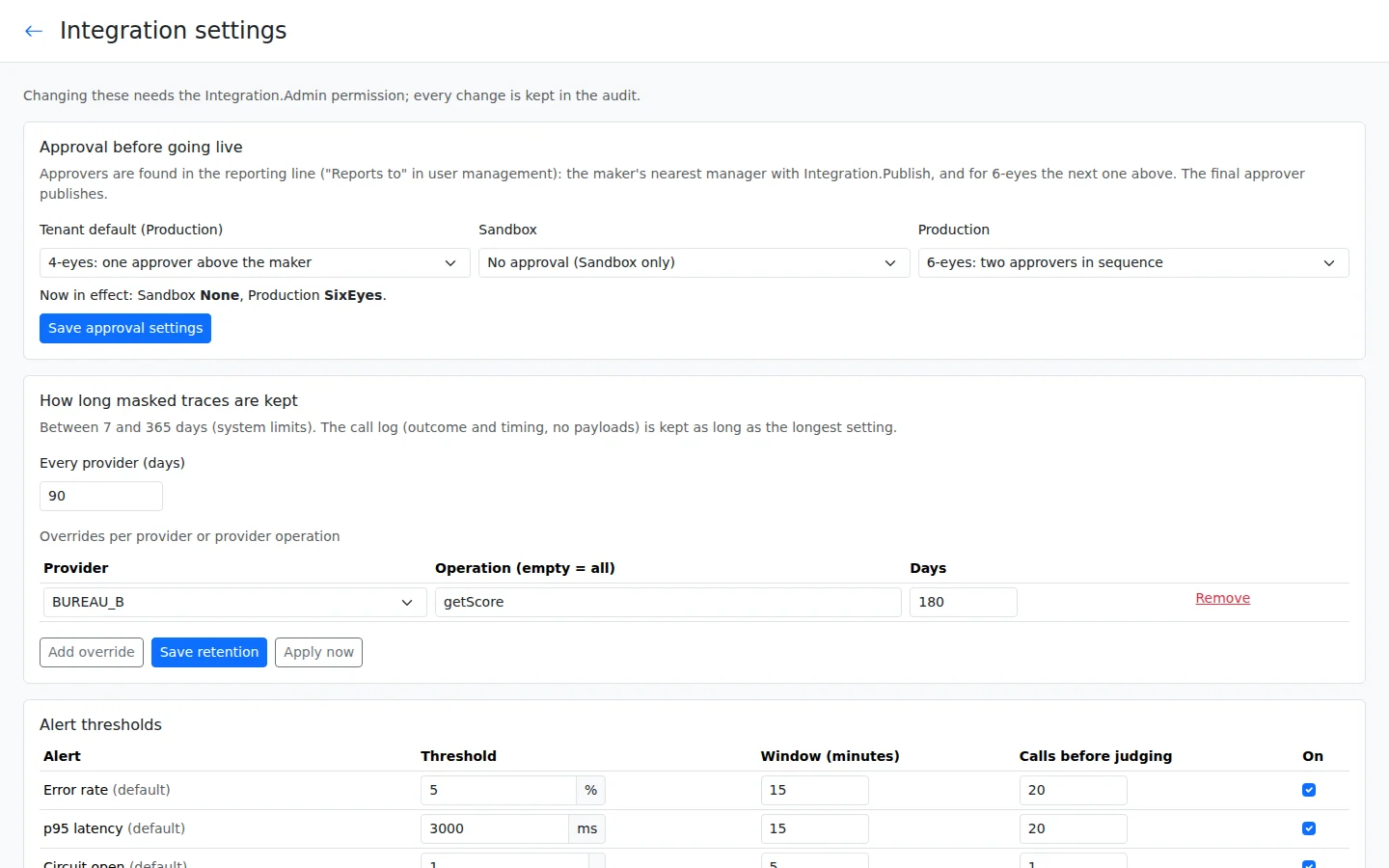
Your team chooses the approval mode for each environment. Moving a provider version to Production, where real work takes place, always requires approval. The final approver publishes that version. Approval also applies when reverting to an earlier version. In the current release, publishing a flow and saving a logical operation or provider group are direct actions for authorised users; they do not use this approval sequence.
An assumption is a setting used when the exact answer has not yet been confirmed. Before production, your team must verify any high-risk assumption. Other assumptions must either be verified or explicitly accepted by an approver, so an unconfirmed setting does not pass unnoticed.
Monitor and respond
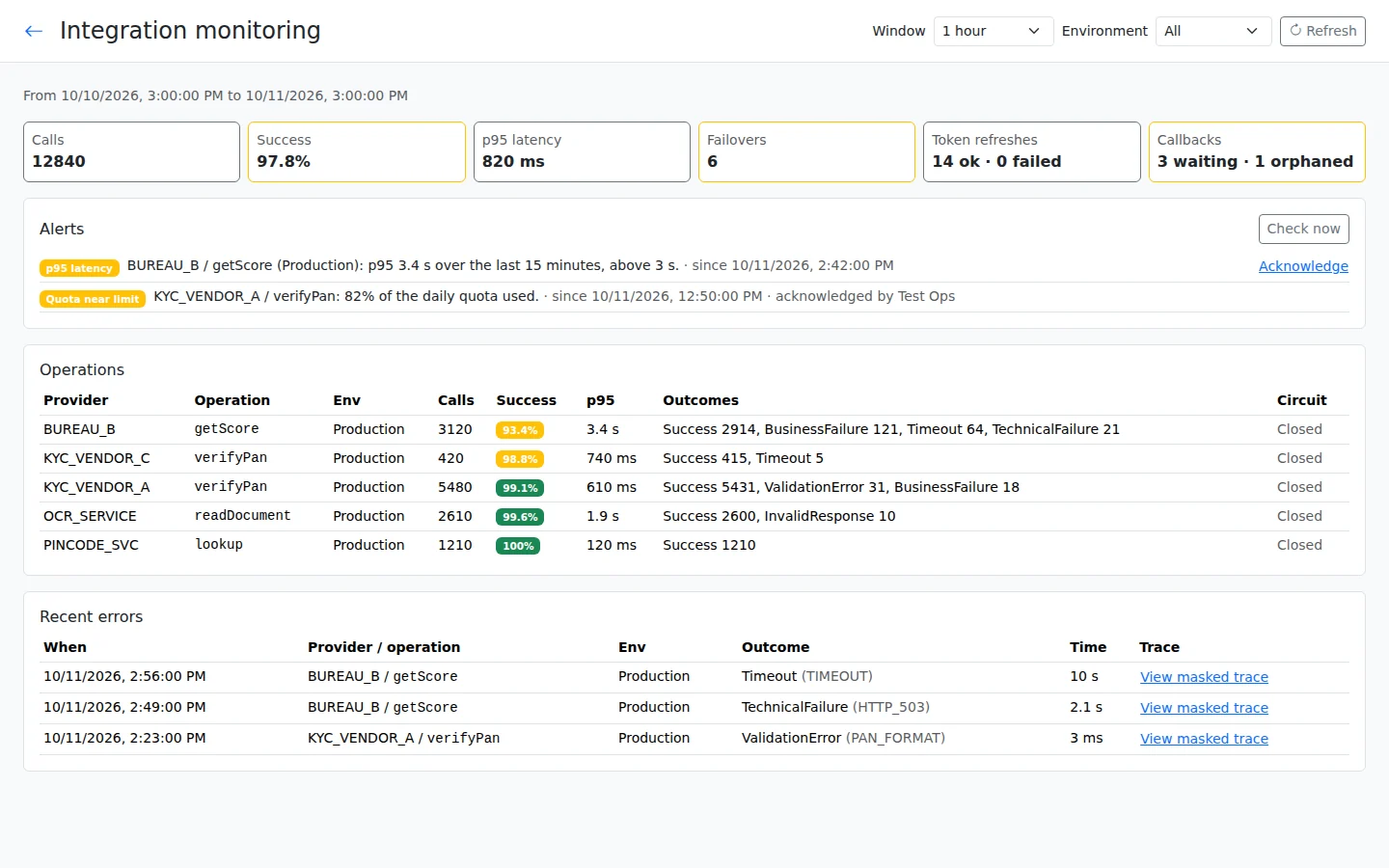
Monitoring shows how many requests were sent, how many succeeded and how long replies took. Filter by service, provider or environment to find where a problem is happening. You can also see provider switches, access-token renewals and delayed replies that are still waiting or cannot be matched to a case.
Alerts appear on the Monitoring screen and update there as problems are detected. They cover repeated errors, slow replies, authentication problems, growing callback queues and usage limits that are nearly reached. Email and SMS alert delivery are not included in the current release. An open circuit means the engine has stopped calling a failing provider. A masked trace shows the sequence of events for a call while hiding personal information.
Trace changes safely
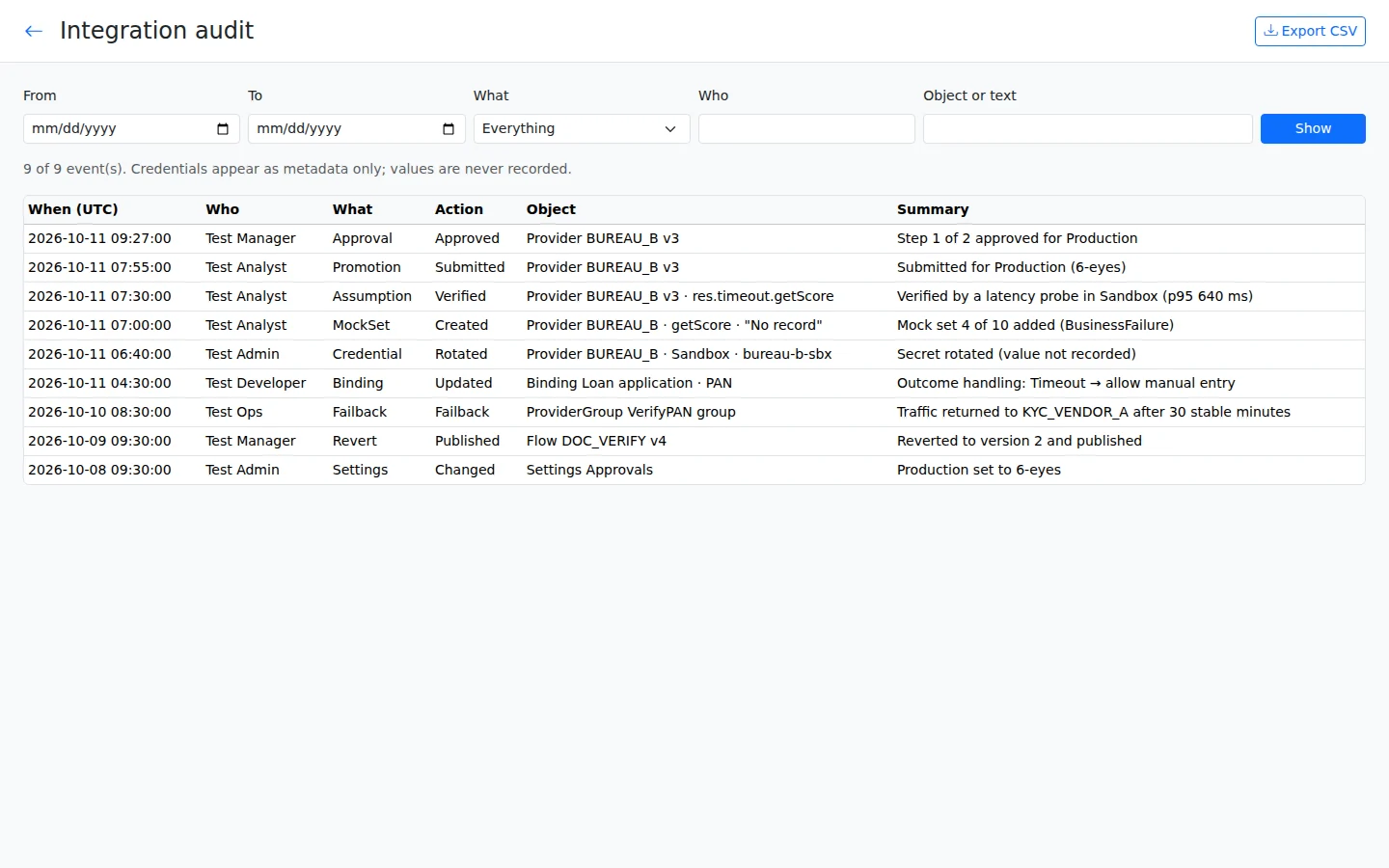
The audit trail records who changed settings, approved a request or performed an operational action, and when it happened. Export this history as a CSV file for review in a spreadsheet. Credential records show information about the action, such as a rotation, rather than the password or key itself.
Call traces record what happened during a request, with personal data hidden. They are kept for 90 days by default. Your team can change that retention period within the supported limits.
Keep boundaries clear
Passwords and keys are stored in a vault, a protected store for credentials; production uses OpenBao. They are entered write-only, so the entry is not shown back as a readable secret. Personal information is hidden before it appears in logs, traces or an AI request, and company isolation keeps each customer’s data separate.
Calls to internal network addresses are blocked unless those destinations are explicitly allowed. Connections use TLS 1.2 or higher for transport security. Response-size limits and safe XML reading add controls over the data received from providers.
Give colleagues the permissions they need: viewing settings, editing them, publishing, managing credentials or operating integrations are separate rights. Every AI call is logged. If the AI returns unusable output, the platform retries once, then falls back to rule-based handling.
See what a change will affect
The Usage tab shows where an integration is used, including connected screens, flows and provider groups. An impact list identifies connections whose expected inputs or outputs would be broken by a proposed change. This helps your team find the places that need review before switching to new settings.
A provider approval request brings together the changed settings, assumptions, saved test results and affected connections. If the reporting line has no eligible approver, the request cannot proceed until an administrator sets up one; the maker cannot approve it instead.
Each application uses only what it is allowed
Review application access alongside an integration's use. The company holds the integration definition once, and its scope names the applications allowed to use it. Designers' pick lists show only integrations inside the open application's scope.
DynamicForm prevents scope removal while the integration remains in use. This keeps application access linked to actual use when company administrators review a scope change. Check which applications rely on the connection before changing its reach.
Limit incoming systems through API clients scoped to chosen applications. A calling system can reach only those applications. Explore Applications for company-level definitions and application-level work, or Company Admin to manage scope.

Build your first app free
All platform features, hosted by us for 120 days. For testing and evaluation, subject to our Fair Use Policy.
Explore DynamicForm
Company Admin · Applications · AI Core · Security and identity
Updated 30 October 2026