Control · Integrations
Using integrations in screens, workflows and the phone app
Choose when your application should contact an outside service and what it should do with the reply. The same connection can fill screen fields, guide a workflow decision or support a user working on the phone app.
Use one connection from screens, workflows and phones. Choose when it runs and how each part of the application responds to the result.
Link screens and actions
Choose a trigger
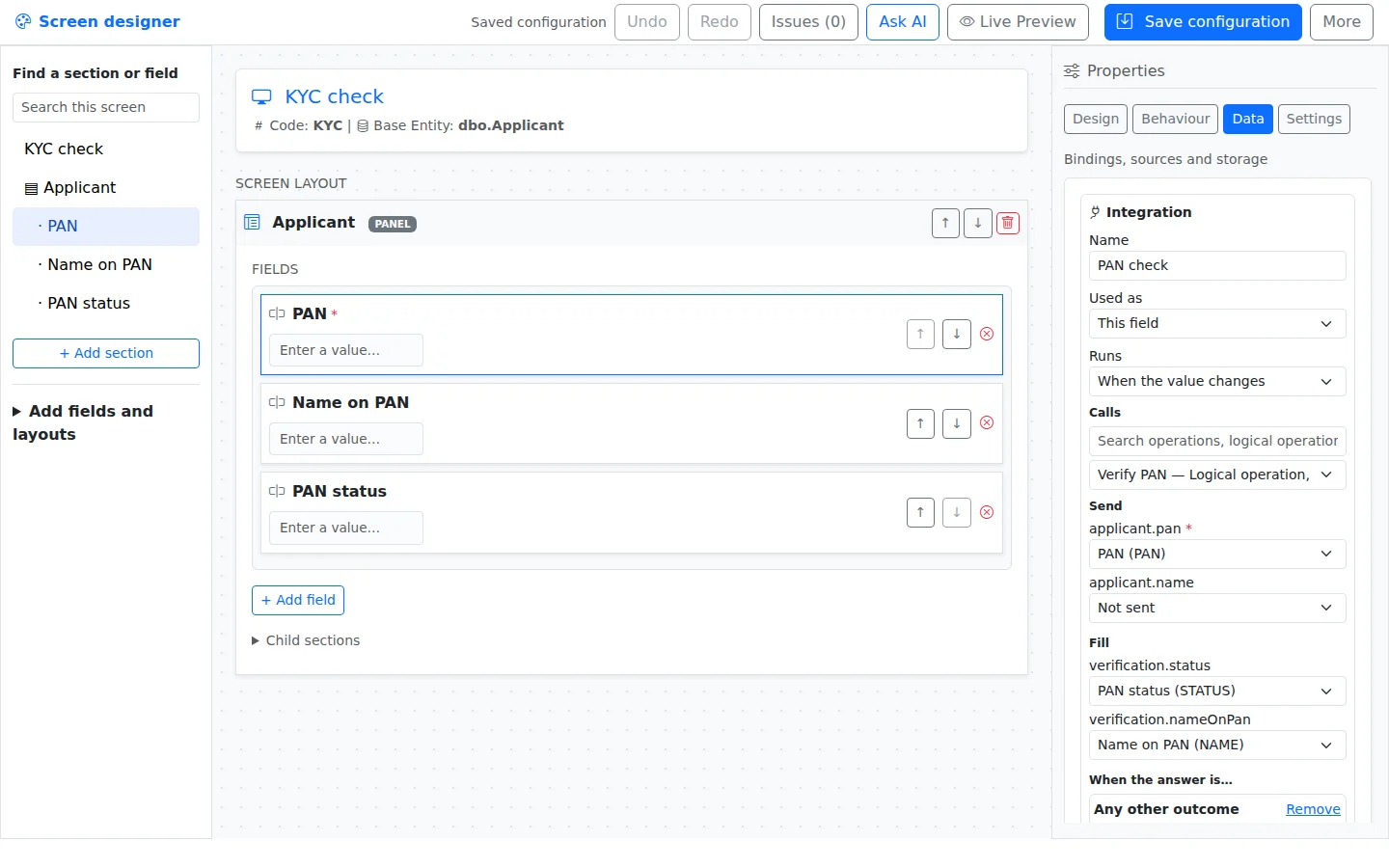
A trigger is the event that starts the call. You can call a service when a value changes, the user leaves a field, clicks a button or uploads a file. Calls can also run when a screen opens, before saving or when a workflow moves to another step.
Handle each outcome
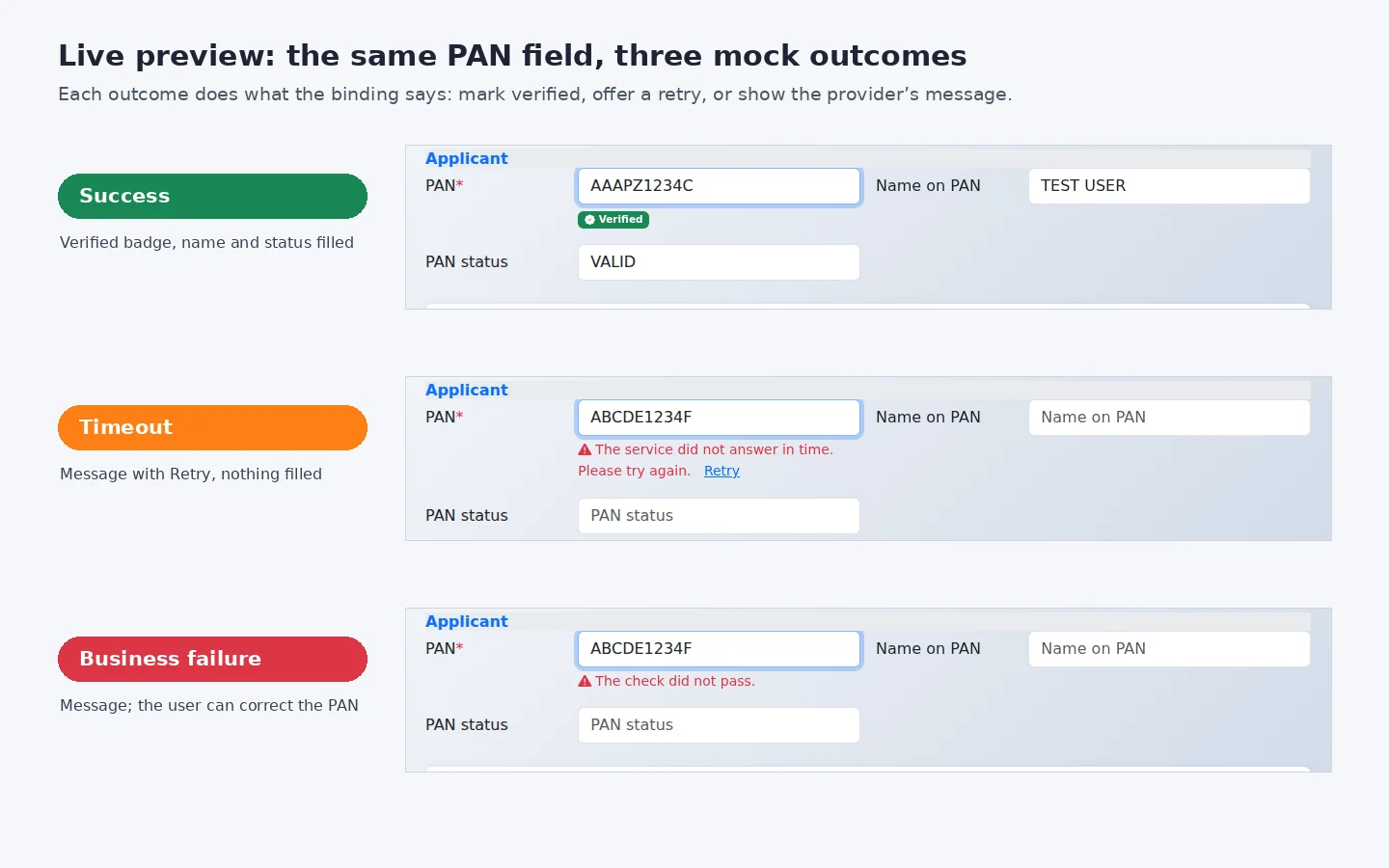
An outcome describes how the call ended, such as success, a timeout or a failed check. For each outcome, choose the next action: display a message, mark a value as verified, lock or clear a field, allow manual entry, stop a save or continue.
Preview with mocks
Select a prepared test reply to see how the screen behaves. Your team can check a successful result, an error or a delay before the real service is ready, then adjust the messages and field behaviour.
Use it on phones
The phone sends its request through the DynamicForm server, which contacts the provider. This keeps the provider address, keys and access tokens off the phone. If you enable “Queue when offline”, the call waits until the phone reconnects and then runs without creating duplicates.
Some services return a result later. The phone checks for pending results while a form is open and when the app resumes; this is called polling. The Updates list keeps results for saved forms so the user can reopen the form, apply the values and save them.
Optional push delivery can prompt the app to check for a result sooner, using a reference without personal data. It needs additional server and app setup and is switched off in the documented build. It does not show a notification in the phone notification tray; polling on resume handles results received while the app is in the background.
Route the workflow
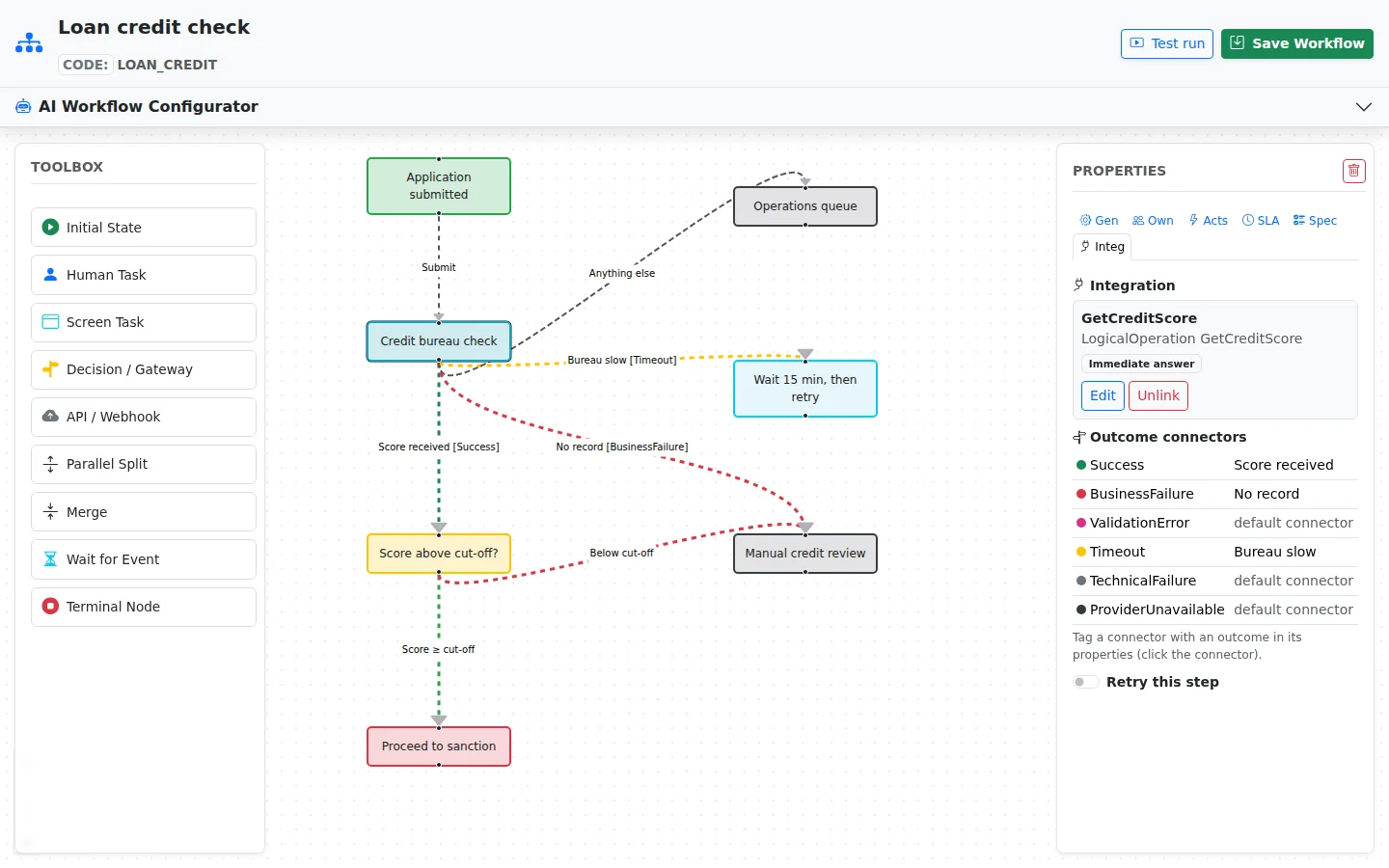
Add an automatic API step when a workflow needs information or an action from another system. Give each outcome a route: a successful reply might continue to a decision, while a delay might lead to a wait or retry. Your team supplies any decision thresholds, the values that determine which path to take. The AI does not invent them.
A workflow can wait for an event and resume without repeating completed calls. You can also check conditions before and after it moves to another step. The case history shows which provider answered and how long the call took.
The AI hands over
Ask Screen AI or Workflow AI to connect a service to the screen or process you are editing. They propose links using services, fields and steps that actually exist. If the required connection has not been set up, they hand over to Integration AI to guide that work, then your team reviews the proposed changes.
Example · Customer Loan Origination
The loan example links a verification field, previews three web outcomes and routes a workflow API step. These screenshots show the web designer and web preview, not the phone app.
Build your first app free
All platform features, hosted by us for 120 days. For testing and evaluation, subject to our Fair Use Policy.
Updated 30 October 2026